Medication Tracker
User guide
This guide shows you how to use Medication Tracker to keep your family’s medicines in order. It is for anyone in the household, with no technical or pharmacy background needed. If you are new to the app, read the first three sections, then jump to the task you need.
When a word is new to you, look it up in Words to know. Every person, doctor and pharmacy in the pictures is invented.
What the app does for you
Medication Tracker answers three everyday questions:
- What needs a refill, and when? The Refills page lists what to order now and what is coming up. It aims to refill while a few days of medicine are still on hand, but never before your insurance will pay.
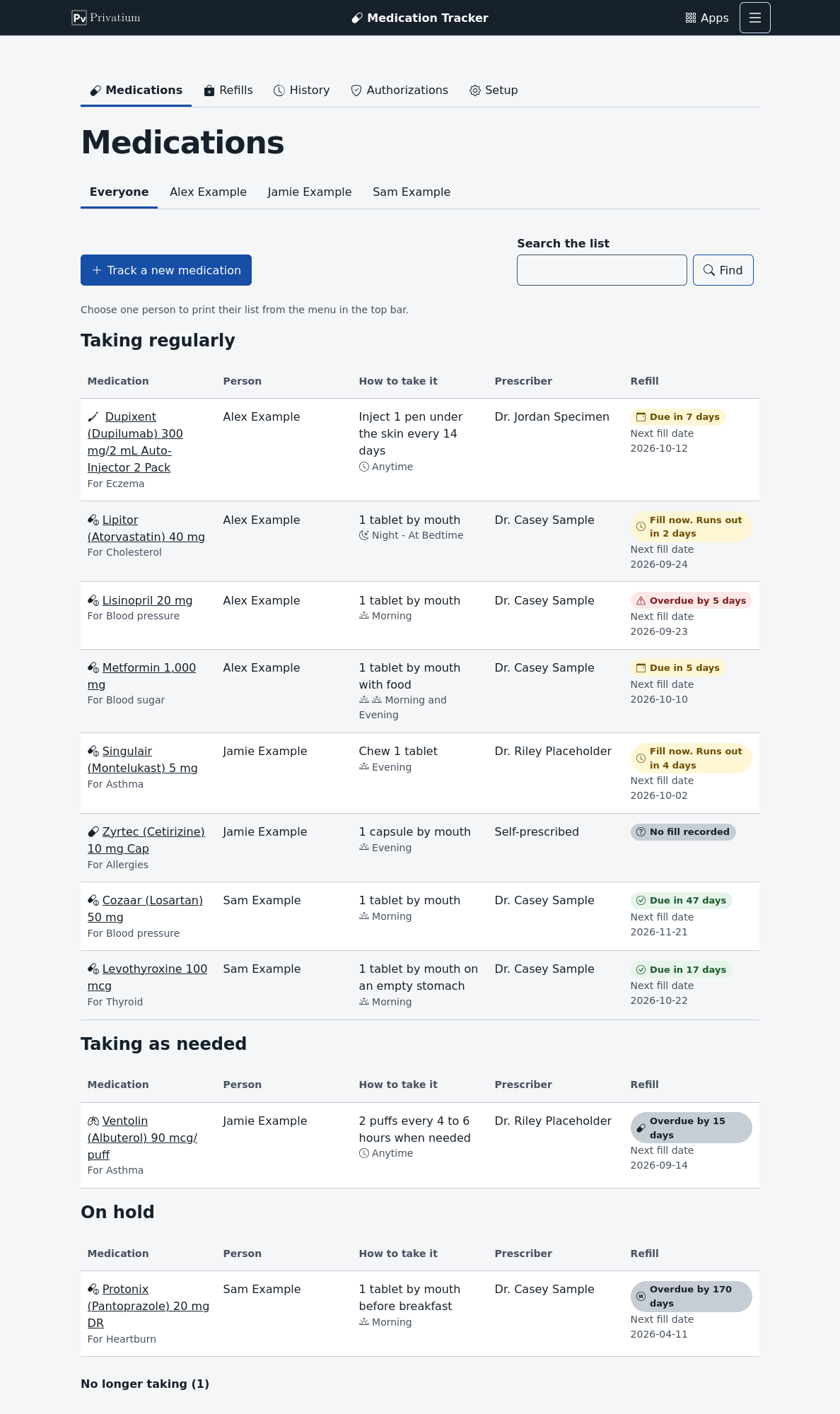
- What does each person take? The Medications page keeps each person’s list, with how to take each medicine and who prescribed it. You can print it for a doctor’s visit.
- What did we get, and what did we pay? The History page lists every fill, adds up what you paid, and prints a spending report for an FSA, an HSA or taxes.
It also reminds you when a prescription has no refills left and when an insurance approval is about to end.
Find your way around
The dark bar at the top belongs to Privatium, the program that runs this app.
- The Privatium logo on the left opens the list of all your Privatium apps.
- Medication Tracker in the middle takes you back to this app’s first page.
- Menu on the right holds extra actions for the page you are on, such as Print list, and Privatium’s own settings.
Under the bar, the app has five tabs:
| Tab | What you find there |
|---|---|
| Medications | Each person’s medicines. This is the first page you see. |
| Refills | What needs a refill now, and what is coming up |
| History | Every fill, what you paid each year, and a spending report to print |
| Authorizations | Insurance approvals and when they end |
| Setup | Your family, prescribers, pharmacies, insurance plans, the medication catalog and the reminder settings |
On pages that list several people, a row of names sits under the heading. Choose a name to see only that person, or Everyone to see the whole family. The app remembers your last choice in this browser.
At the bottom of the page, Privatium shows a short message when your device goes offline. Changes you make offline are kept and sent when the connection comes back.
Get started
- Choose Setup, then Family, and add each person. A first name is enough. A birth date is optional; it shows on the printed medication list.
- Choose Setup, then Insurance plans, and add your plan. Use a name you will recognize, such as “Work insurance”. Don’t type member numbers. Then open each person under Family and choose their plan.
- Add each person’s medicines, as Add a medicine to someone’s list shows.
- Record the last fill of each medicine, so the app can work out the next one. You can type it, or copy it from a portal website.
You don’t have to set everything up first. Whenever a form asks for a person, doctor, pharmacy or plan that isn’t in the app yet, you can add it right there.
The app already knows about 2,850 common medicine products. This catalog loads by itself the first time you open a page that needs it. It holds only medicine names, never anything about your family.
Add a medicine to someone’s list
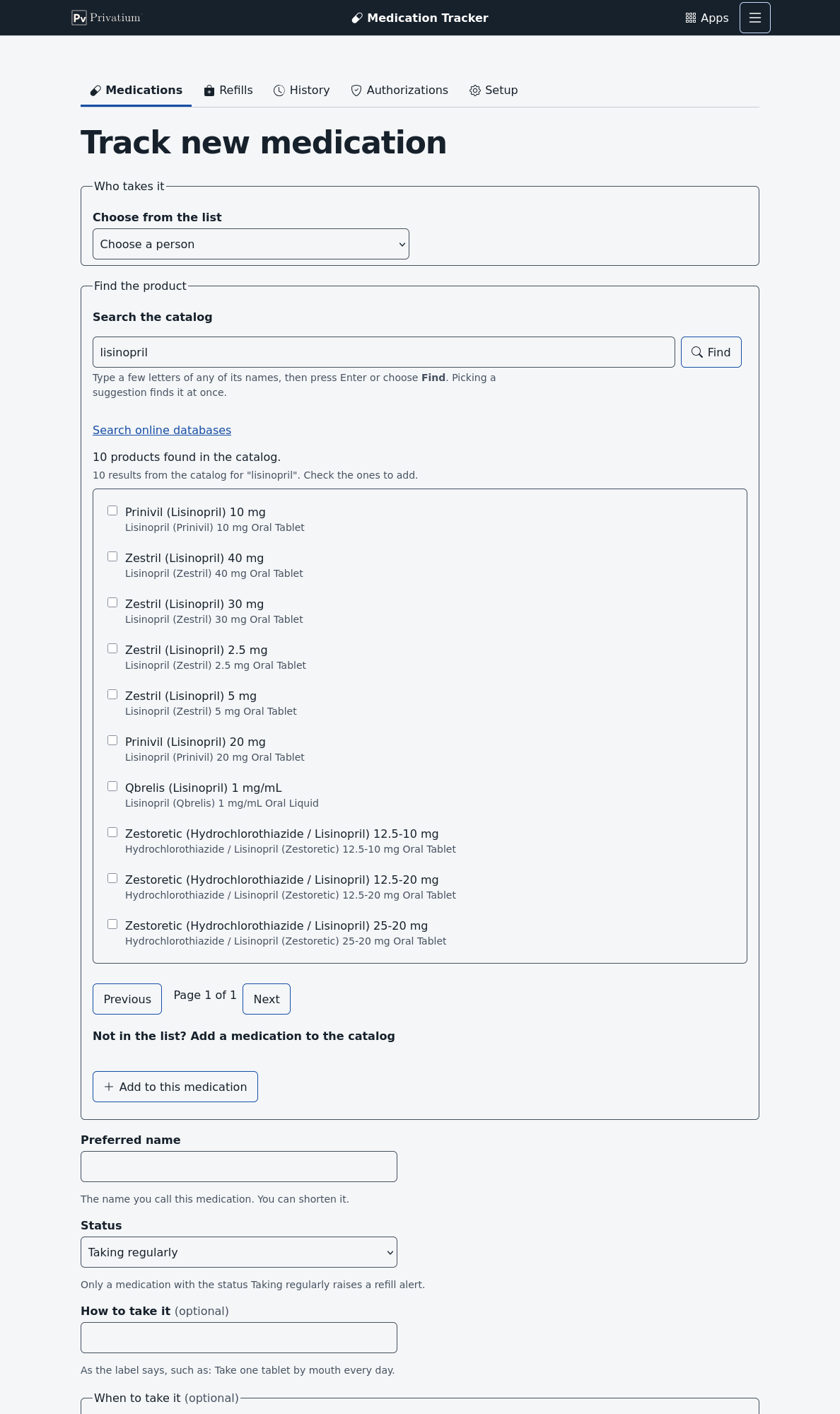
- On the Medications page, choose Track a new medication.
- Choose who takes it.
- Under Find the product, type a few letters of the medicine’s name into Search the catalog. Either the brand or the generic name works. Press Enter or choose Find.
- Check the product that matches the label, then choose Add to this medication. Look closely at the strength and the form, such as tablet or capsule. On a phone you see 5 results at a time, and 10 on a bigger screen. A Close match tag means the name is only similar to what you typed, so read it carefully.
- Check the Preferred name. It starts as the product’s full name. Change it to the name your family uses, if you like.
- Choose the Status, such as Taking regularly. Only medicines taken regularly get refill reminders.
- Fill in what you know: how to take it, when, what it is for, refills left, the prescriber and the pharmacy. All of these are optional. You can add notes too, such as how to store it.
- Choose Save.
Same medicine, two box sizes. Some medicines, like injection pens, come in boxes of different sizes. Check both sizes in step 4, or add the second one later with Add another product. Every fill of either box then counts toward the same medicine. A product can be on only one of a person’s medicines, so the app stops you from adding it twice.
Can’t find it? If the catalog has nothing under that name, the app searches public drug lists from the United States government and shows what they have. You can also choose Search online databases to do this at any time. Pick a result, and the app fills in the name and strength for you to check. This needs an internet connection. The app sends only the name you typed, never anything about your family.
Still can’t find it? Open Not in the list? Add a medication to the catalog. Type the brand name, the generic name or both. While you type, the app looks for similar products, in case it already has the one you mean. If not, fill in the strength as the label prints it, such as “10 mg”. Then choose the route, the form and the package, and choose Add to this medication. Tick Controlled or Specialty if the label or your pharmacy says so.
Change or stop a medicine
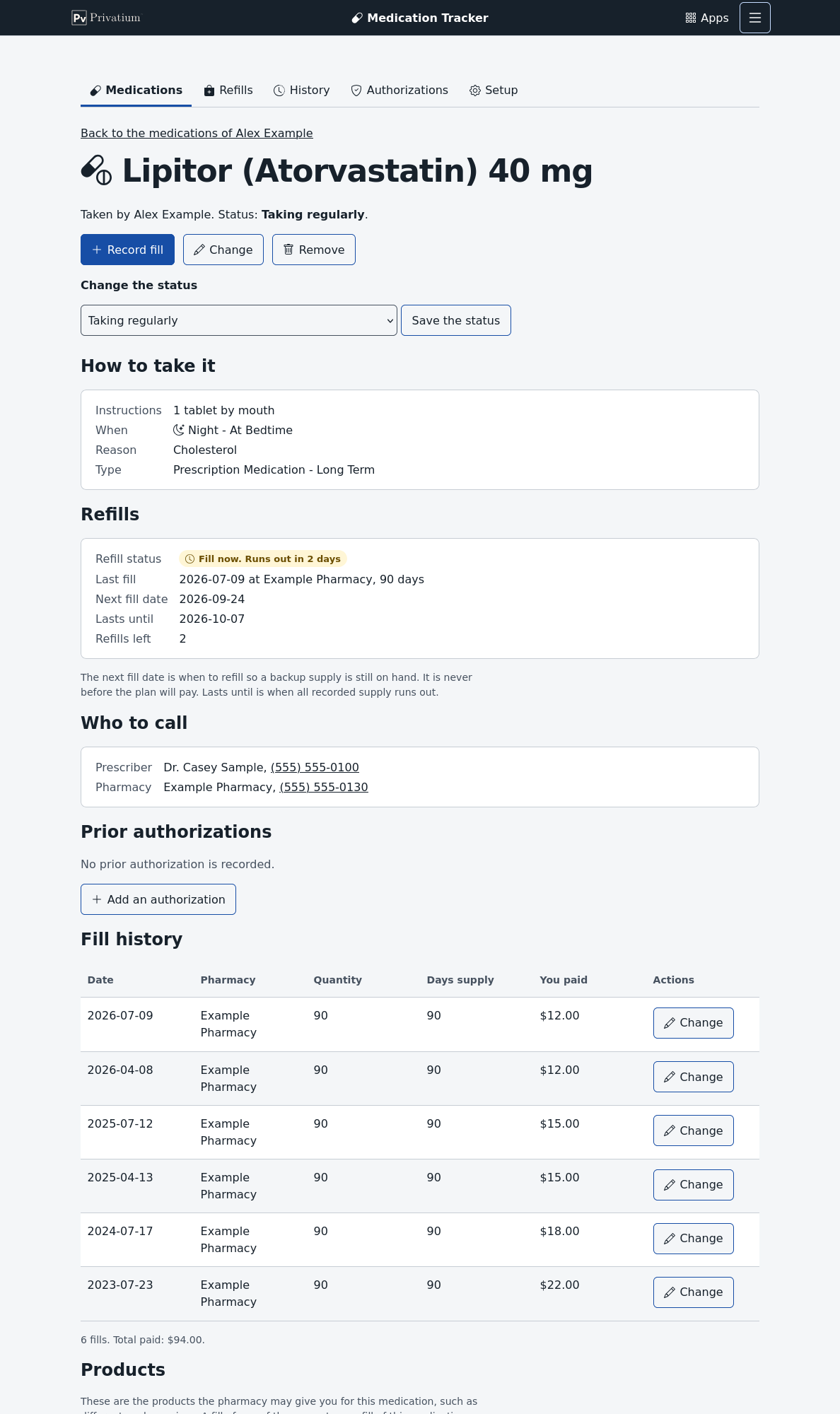
Choose a medicine on the Medications page to open its own page. It shows how to take it, its refill dates, who to call, its insurance approvals, every fill and the products behind it.
- To change the status, pick a new one and choose Save the status. For example, choose On hold while a doctor pauses a medicine.
- To change anything else, such as the name or the instructions, choose Change.
- When someone stops taking a medicine, set the status to No longer taking. It moves to a closed section at the bottom of the Medications page, and its history stays. Restart brings it back.
To find a medicine quickly, type in Search the list on the Medications page. The list narrows as you type. It matches the name, the products, the prescriber and the person.
A small picture stands beside the time of day, so you can spot it at a glance. For example, a sunrise means Morning, a moon means Night and a fried egg means With Meals. A time you typed yourself shows the words alone.
| Status | Use it when |
|---|---|
| Taking regularly | The person takes it on a schedule. It gets refill reminders. |
| Taking as needed | The person takes it only now and then. Its dates are shown, with no reminders. |
| On hold | A doctor paused it. |
| Not started | It is prescribed, but the person hasn’t begun it. |
| No longer taking | The person stopped. The history stays. |
A new fill brings a medicine back. Say you record a fill for a medicine that is Not started or No longer taking. If that fill still lasts today, the medicine moves to Taking regularly. If you don’t know the days supply, the app counts 30 days. An older fill, added just for your records, leaves the status as it is.
See what needs a refill
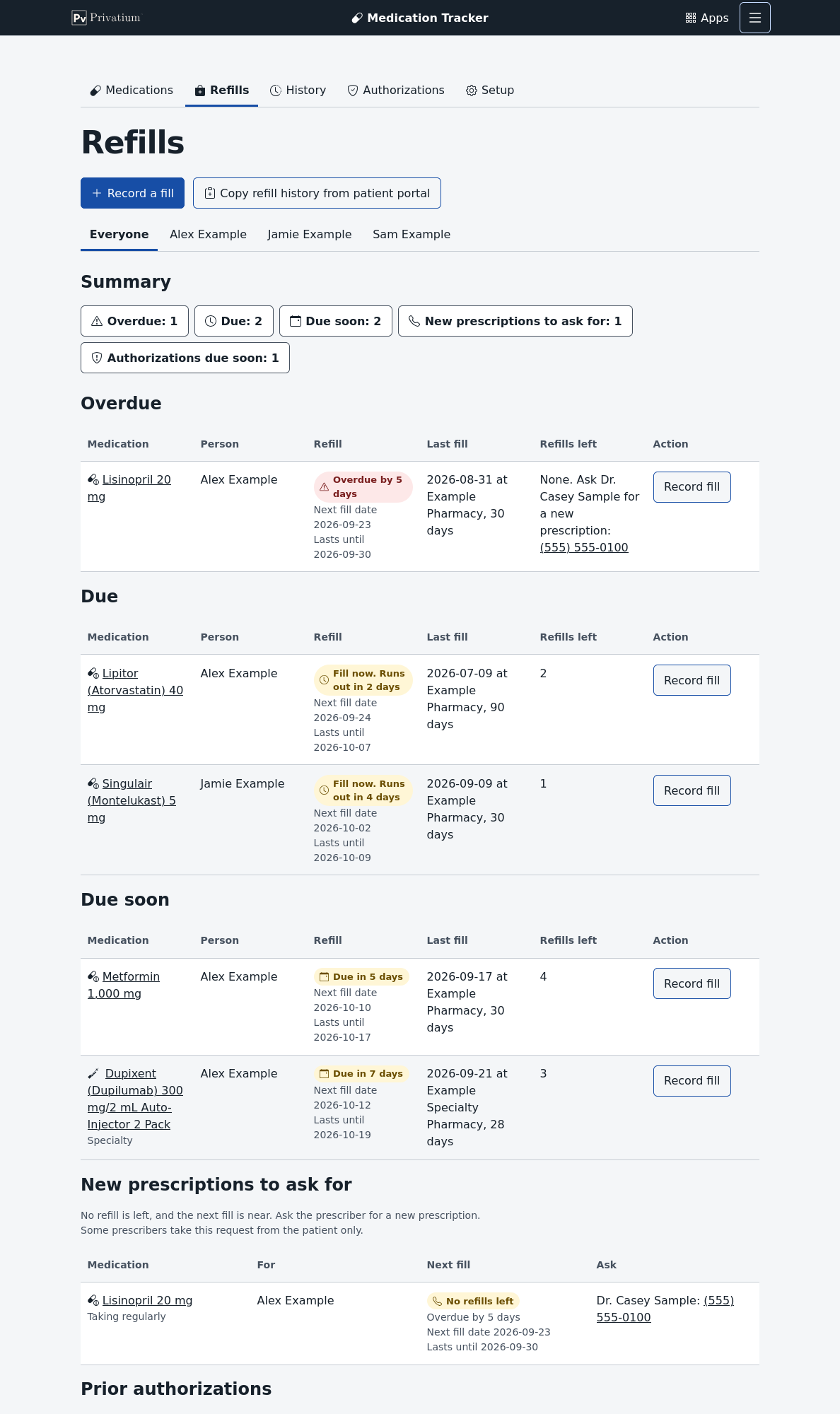
Choose Refills. The most urgent medicines are at the top. The summary row shows how many are in each group, and each count jumps to its group.
| Group | What it means | What to do |
|---|---|---|
| Overdue | The medicine you recorded has run out. | Refill now. If you did refill, record the fill. |
| Due | The next fill date is 3 days away or fewer, or has passed. | Order the refill now. |
| Due soon | The next fill date is 4 to 7 days away. | Plan to order soon. |
| New prescriptions to ask for | No refills are left, and a refill is near. | Ask the prescriber for a new prescription. The row shows their phone number. |
| Prior authorizations | An insurance approval has ended or ends within 30 days. | Ask the prescriber to request a new approval. |
| As needed | Medicines taken as needed. | Nothing. The dates are there if you want them. |
| Missing information | No fill is recorded yet, or the last fill has no days supply. | Record a fill, or add the days supply. |
| Not due yet | Everything else. This group starts closed. | Nothing. |
| Paused | Medicines on hold or not started. | Nothing. |
A specialty medicine takes longer to arrive, so it shows as due at 5 days and due soon at 10. You can change all these numbers in the reminder settings.
The two dates. Each row shows two dates:
- Next fill date is when the app suggests you refill. It leaves you a small backup supply, about 15 percent of the last fill and at least 7 days. It is never before your plan will pay.
- Lasts until is when all the medicine you have recorded would run out.
When the next fill date has passed, the row says “Fill now. Runs out in 4 days”, for example. It only becomes overdue after the medicine runs out. How the app works explains these dates in more detail.
The page also works on a phone. Each row becomes a card that you can scroll through.

Record a fill
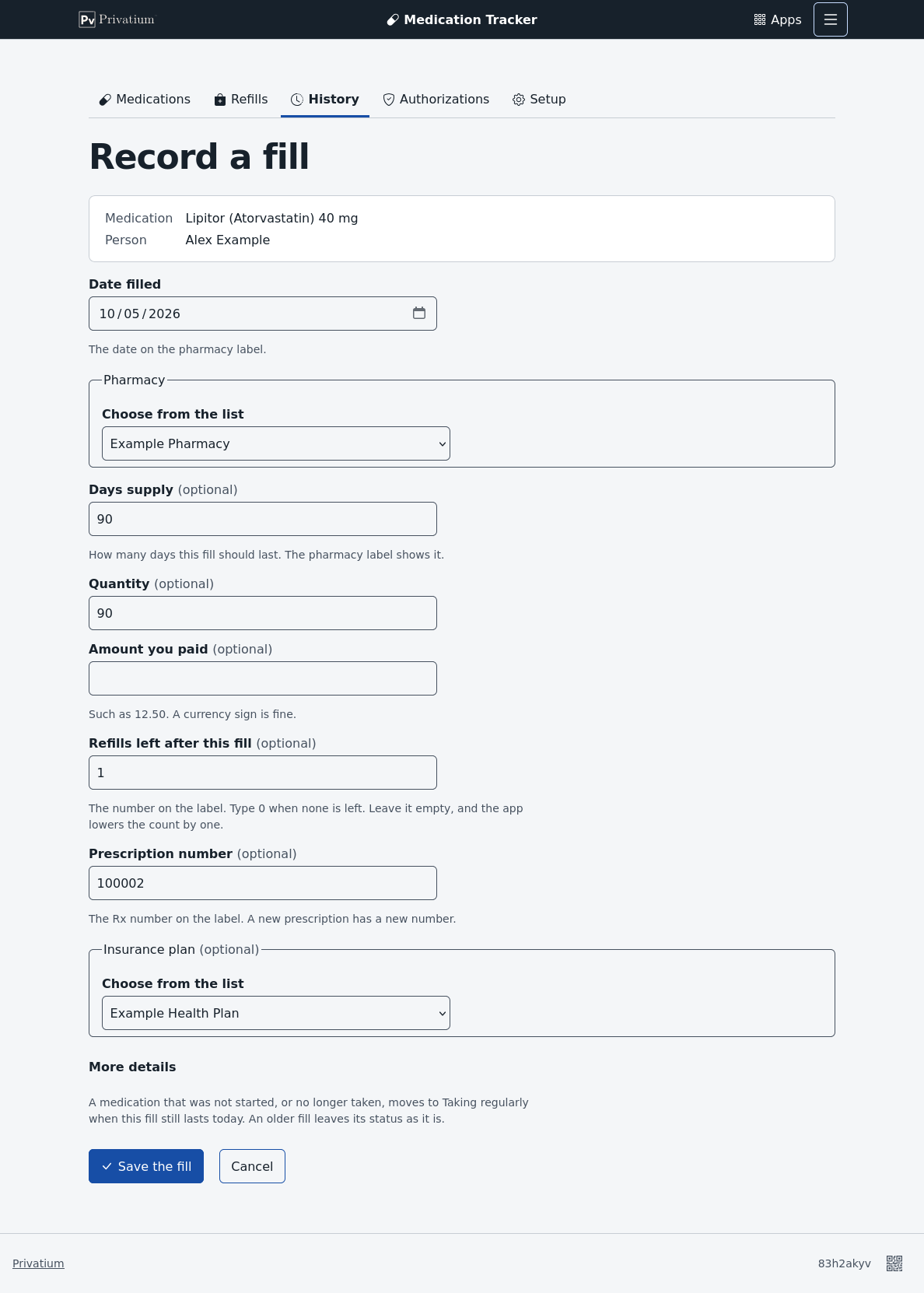
- On the Refills page, choose Record fill in the medicine’s row.
- Check the values. The form copies the pharmacy, the days supply, the quantity, the prescription number and the plan from the last fill, so often you only need the date and the amount.
- If the medicine comes in more than one box size, choose the Product you got.
- Type the amount you paid. A dollar sign is fine.
- Check Refills left after this fill. It starts at one fewer than before. If you leave it empty, the app lowers the count by one.
- Under More details, you can add the claim number and a note.
- Choose Save the fill.
For a medicine that isn’t on the Refills page, choose Record a fill at the top of the page and pick the medicine. If nobody tracks that medicine yet, choose – Another medication –, pick the person and find the product. Saving the fill also adds the medicine to that person’s list.
Copy fills from a portal website
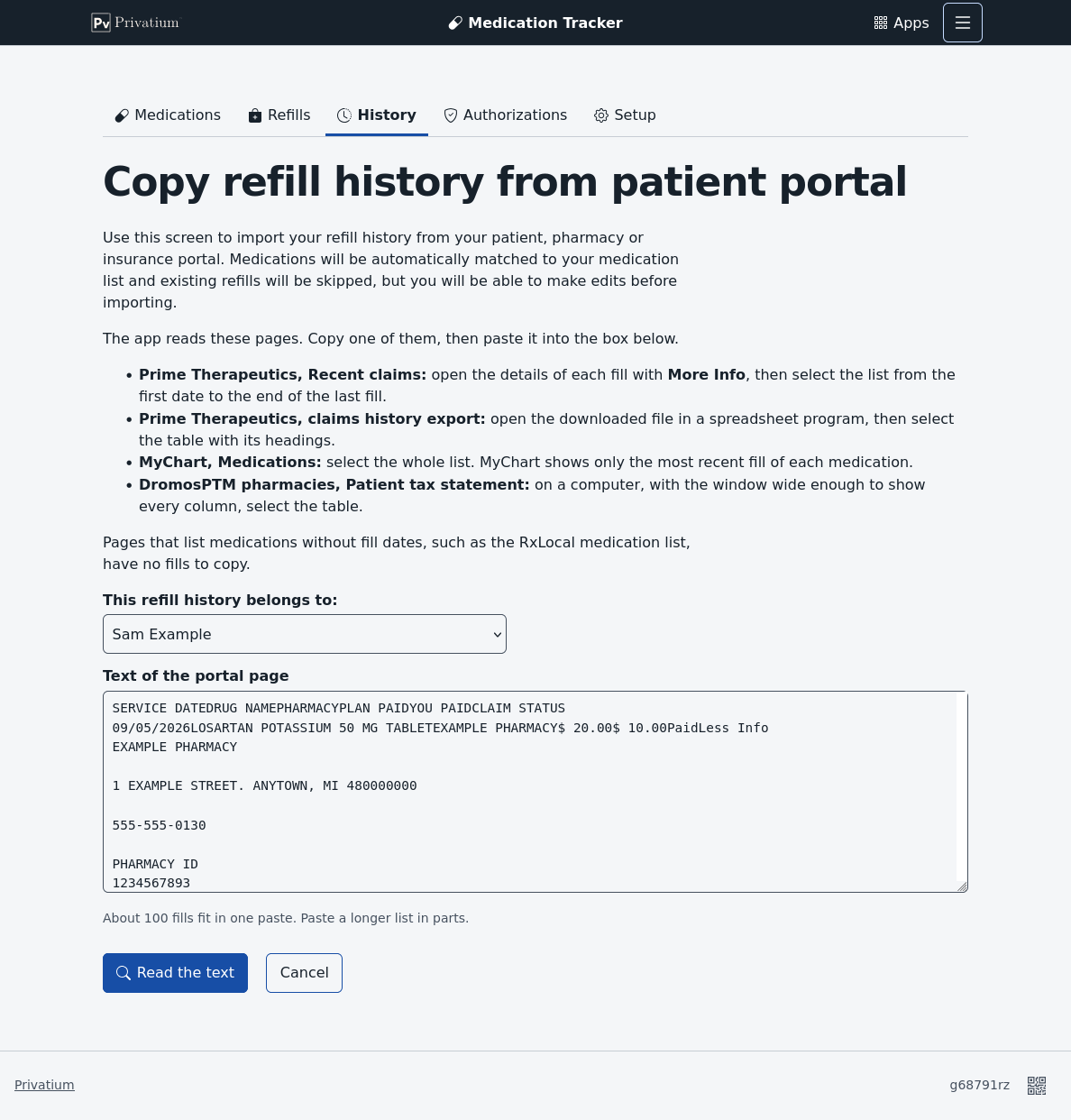
Your insurance plan’s, pharmacy’s or doctor’s website, often called a patient portal, lists your fills. Instead of typing each one, you can copy the list and let the app read it. Nothing is added until you check it.
The app reads these pages. The table says how to copy each one.
| Website and page | How to copy it |
|---|---|
| Prime Therapeutics, Recent claims | Open the details of each fill with More Info. Then select the list from the first date to the end of the last fill. |
| Prime Therapeutics, claims history export | Download the export and open the file in a spreadsheet program, such as LibreOffice Calc or Excel. Select the table, headings included. |
| MyChart, Medications | Select the whole list. MyChart shows only the most recent fill of each medicine, so you get one fill per medicine. |
| DromosPTM pharmacy websites, such as Henry Ford and Meijer, Patient tax statement | Use a computer, and make the window wide enough to show every column. Then select the table. |
Some pages list your medicines but no fill dates, such as the RxLocal medication list and the DromosPTM prescriptions list. They have no fills to copy. Use the pages above instead.
- On the website, open the page and copy it as the table says.
- In the app, choose Refills, then Copy refill history from patient portal.
- Choose who the fills belong to, paste the text and choose Read the text.
- Check the review page, described below. Its summary names the page the app read, such as “Read as MyChart medications”.
- Choose Add fills.
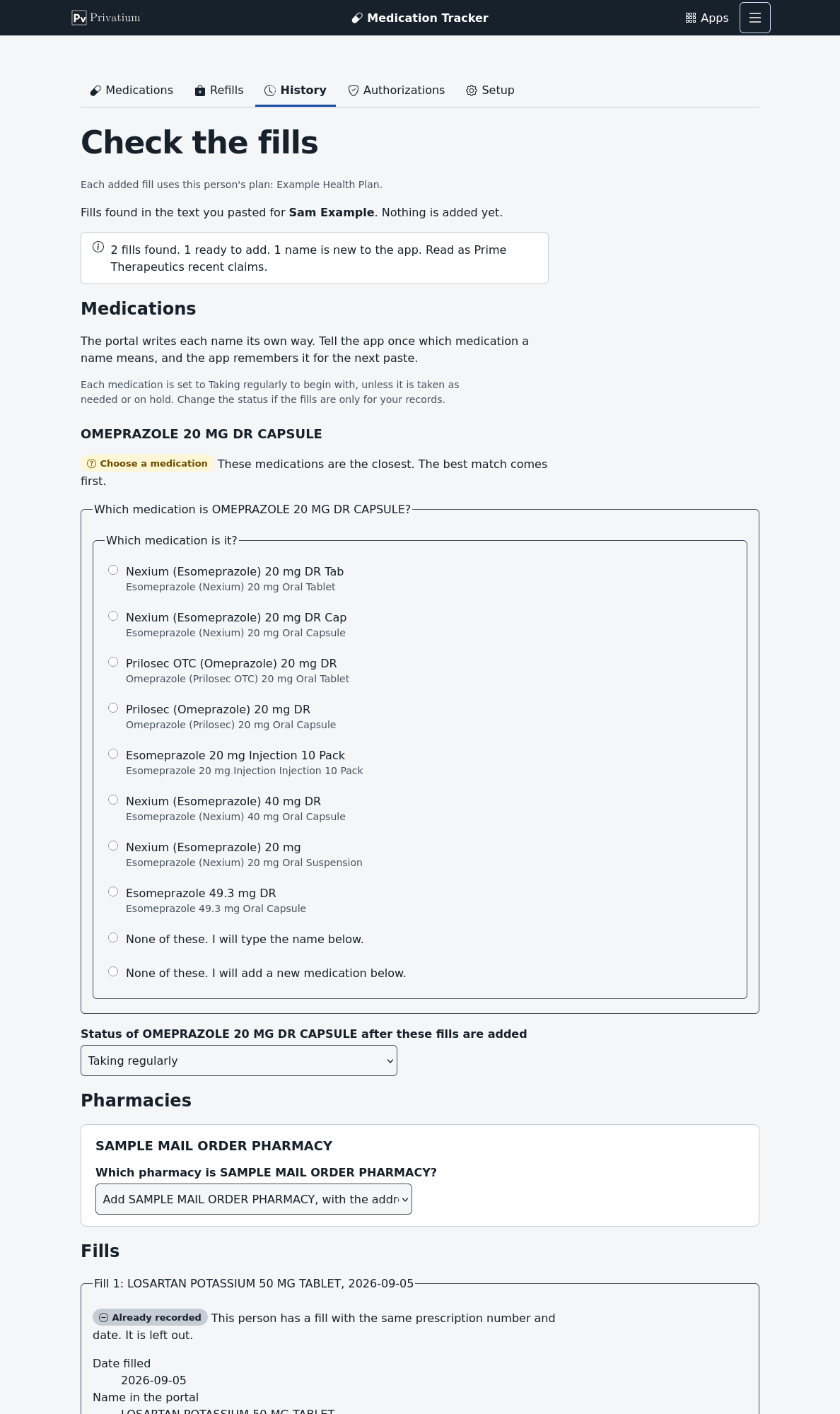
The review page asks about each medicine name and each pharmacy only once, however many fills use it.
Medicines. Portals spell names their own way, such as “LOSARTAN POTASSIUM 50 MG TABLET”. For each name, the page shows what the app found:
| The page says | What it means | What you do |
|---|---|---|
| Known name | The app has seen this name before. | Nothing |
| Matched | One medicine has the same name and strength. It is chosen for you. | Check it |
| Choose a medication | Some medicines are close. The best match is first. | Pick one |
| New name | Nothing in the catalog is like it. The app filled in a new medicine from the name. | Check the names and the strength |
You can always pick a different medicine instead. The app then remembers the portal’s name for that medicine, so next time it is a known name.
Status. Each medicine also has a drop-down named Status of … after these fills are added. It starts at Taking regularly, because pasted fills usually mean the person takes the medicine. A medicine that is Taking as needed or On hold keeps its status instead. If you are only copying old fills for your records, pick the status the medicine should keep, such as No longer taking.
Pharmacies. The app matches a pharmacy by its NPI number, then by its phone number, then by its name. The phone number helps when two websites write the same pharmacy’s name differently. For a new pharmacy, the app offers to add it with the address and phone number from the portal.
Fills. Each fill has a check box labeled Add this fill.
| Result | What it means |
|---|---|
| Ready | Everything was read. The box is ticked for you. |
| Not paid | The plan didn’t pay this claim, or denied it. Tick it only if you did get the medicine. |
| Already recorded | You already have this fill, so it is left out. |
| Details missing | The details weren’t open on the Prime claims page. Open them and copy again. |
| Could not read | A date or number didn’t make sense. The row says which one. |
If you choose Add fills while a question is still open, the page comes back and marks it. Each added fill uses the person’s current plan and lowers that medicine’s refills left by one. Pasting the same list twice adds nothing the second time.
If the app doesn’t know the page you pasted, it says “The app found no fills in that text” and names the pages it reads. Record those fills by hand.
Keep track of insurance approvals
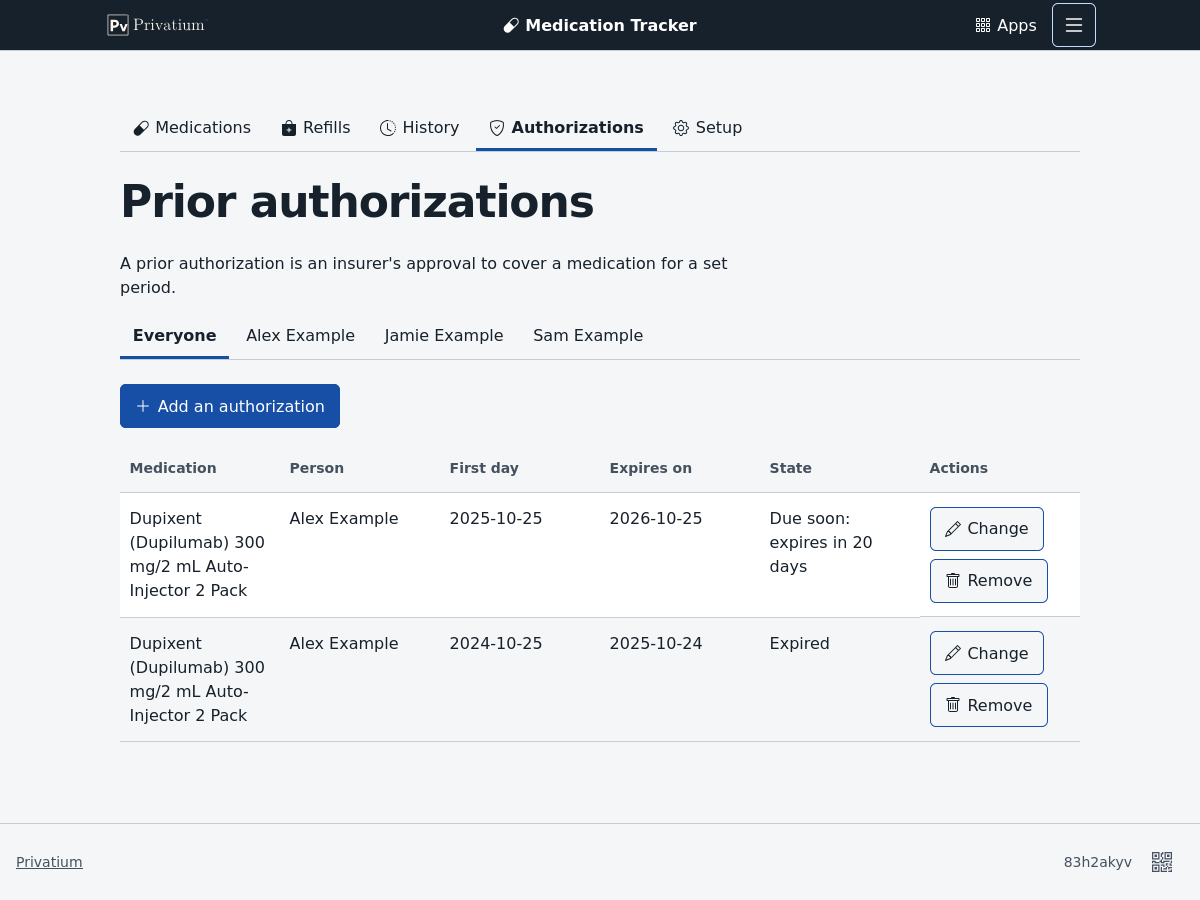
Some medicines need your plan’s approval before it will pay. This is called a prior authorization. It usually lasts a year. Your prescriber has to ask for a new one before it ends, and that can take a couple of weeks.
- Choose Authorizations, then Add an authorization.
- Choose the medicine. If it isn’t on anyone’s list yet, choose – Another medication –, pick the person and find the product.
- Check the first day. The form starts with the first day of this month. Clear it if you don’t know it.
- Check the expiration date. Your plan’s letter shows it. The form starts one year after the first day of this month.
- Choose Save.
The Refills page warns you 30 days before an approval ends. From 14 days before, it shows as due, meaning you should ask for a new one now. After a renewal, add the new approval and the warning goes away.
Set up insurance plans
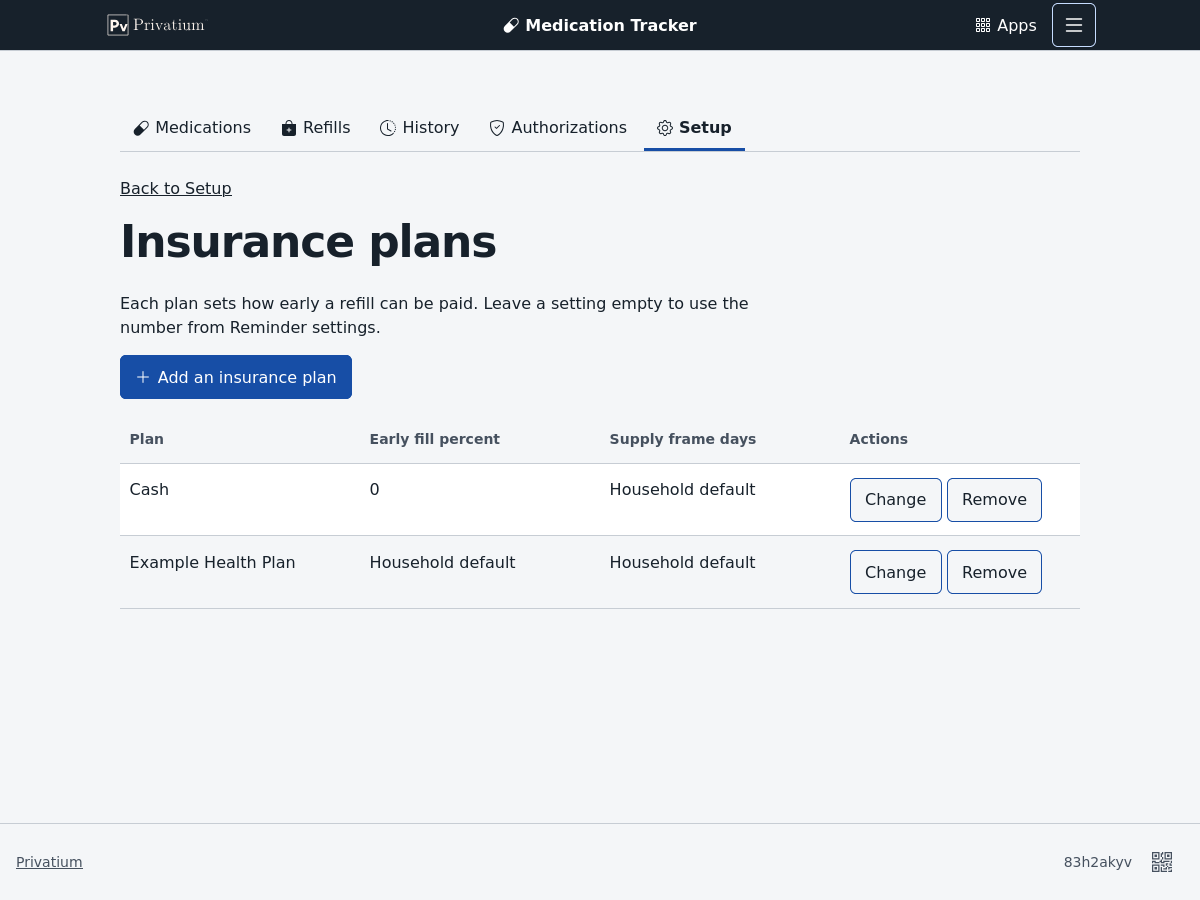
The app uses your plan’s rules to estimate the first day a refill will be paid.
- Choose Setup, then Insurance plans, then Add an insurance plan.
- Type a name you recognize. Leave out member numbers and other personal details.
- Leave the two numbers empty to use the household settings, or type your plan’s own:
- Early fill percent: how much of the last fill may be left when the plan pays for the next one. At 25 percent, a 30-day fill can be refilled 7 days early, and a 90-day fill 22 days early. Use 0 for cash or over-the-counter purchases.
- Supply frame: how many past days the plan looks at, usually 180. Use 0 to count only the last fill, or 3650 to count every fill.
- Choose Save.
- Under Setup, Family, open each person and choose their current plan.
When a person changes plans, their old fills keep the plan that paid for them. History shows the plan of each fill.
Controlled medicines follow stricter rules. They count every fill, whoever paid, and by default they aren’t refilled early at all.
Change the reminder settings
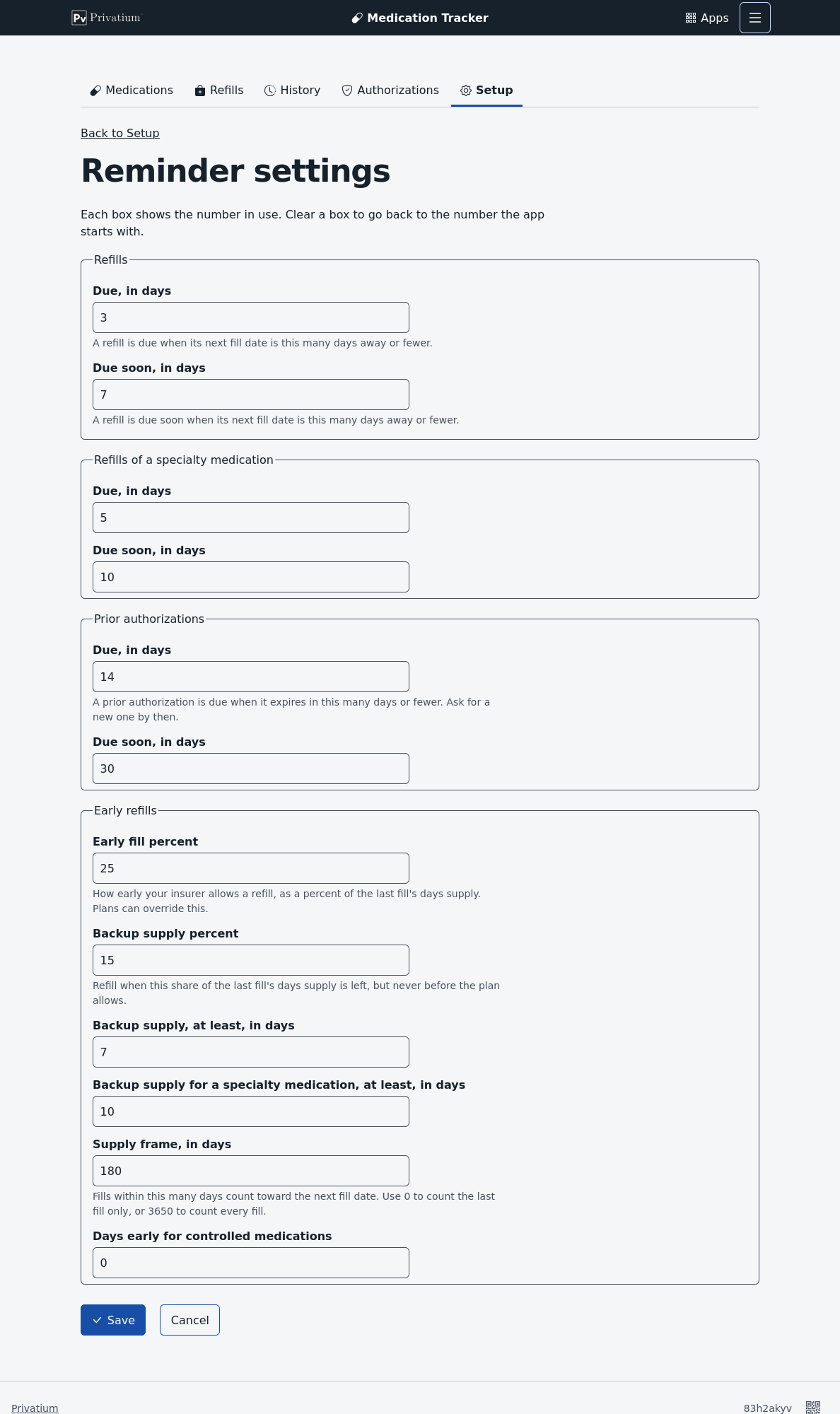
- Choose Setup, then Reminder settings.
- Change any number. Each box shows the number the app uses now. To go back to the app’s own number, clear the box.
- Choose Save.
| Setting | Starts at | What it does |
|---|---|---|
| Due | 3 days | A refill is due this many days before its next fill date. |
| Due soon | 7 days | A refill is due soon this many days before. |
| Due, specialty | 5 days | The same, for a specialty medicine. |
| Due soon, specialty | 10 days | The same, for a specialty medicine. |
| Prior authorization due | 14 days | When to ask for a new approval. |
| Prior authorization due soon | 30 days | When to start planning for it. |
| Early fill percent | 25 percent | How early your plan usually pays for a refill. Each plan can have its own. |
| Backup supply percent | 15 percent | How much of a fill to keep as a backup. |
| Backup supply, at least | 7 days | The smallest backup. |
| Backup supply for a specialty medication, at least | 10 days | The smallest backup for a specialty medicine. |
| Supply frame | 180 days | How many past days of fills count. |
| Days early for controlled medications | 0 days | How early a controlled medicine may be refilled. |
Here is an example. A 90-day fill that runs out on March 30 keeps a 13-day backup, 15 percent of 90. So its next fill date is March 17, as long as the plan will pay by then.
See your history and spending
The History page has two tabs. Fill history lists every fill. Reports shows what you paid each year and makes a report you can print. Both tabs share the same search box and filters, so you can switch tabs without setting them again.
Find a fill
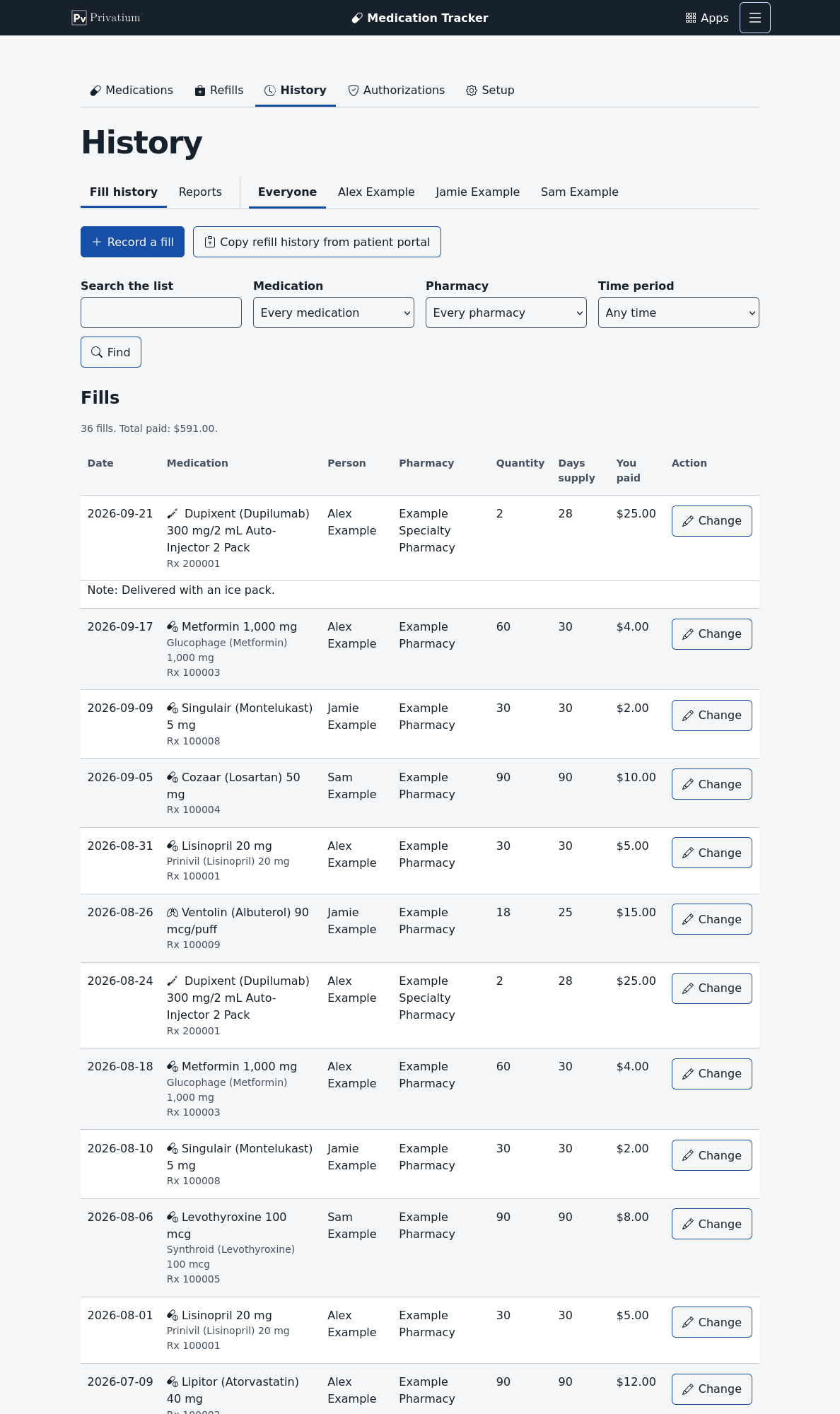
Choose History to see every fill, newest first. To narrow the list:
- Choose a person’s name to see only their fills. The Medication drop-down then lists only that person’s medicines.
- Type in Search the list. As you type, the page hides the fills that don’t match. Choose Find to search every fill, not just the ones on this page. The search looks at the medicine and product names, the person, the pharmacy, the prescription (Rx) number, the claim number and the notes.
- Choose a medicine, a pharmacy or a Time period, then choose Find. A time period can be this week, this month, last week, last month, the last 90 days, or one whole year. Weeks start on Sunday.
Above the table, the page counts the fills and adds up what you paid. Amounts show in US dollars. To see everything again, choose Show all.
To fix or remove a fill, choose Change in its row. A note you wrote on a fill shows on its own line under the fill.
See what you paid each year
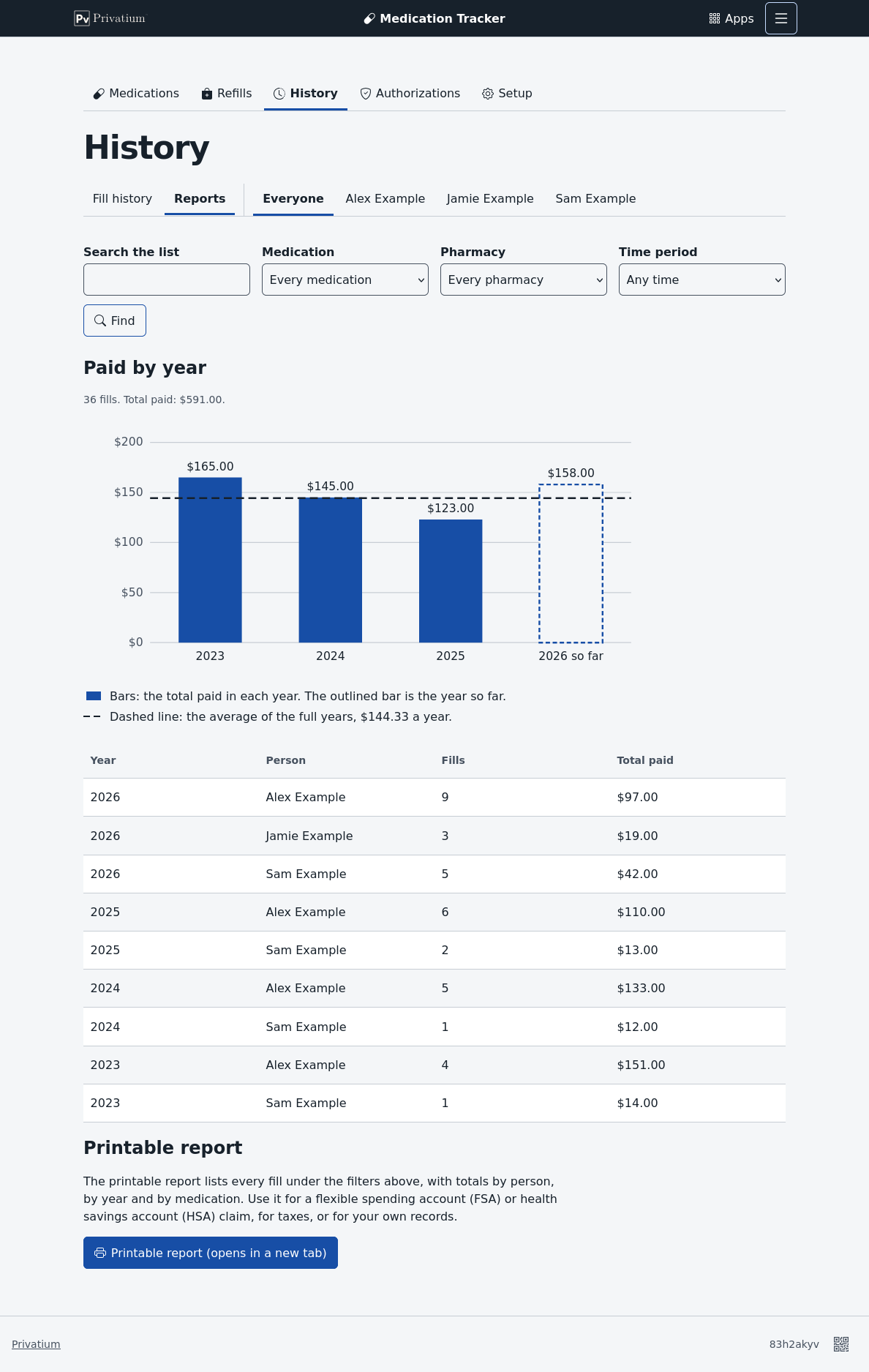
Choose Reports to see a bar chart of what you paid each year. The filters work here too. For example, choose one person and one medicine to see what that medicine cost them each year.
- Each bar is one year. This year’s bar has an outline and says “so far”, because the year isn’t over yet.
- The dashed line is the average of the full years, so a part year doesn’t pull it down. It shows once you have at least two full years of fills.
- The table under the chart gives the same totals as numbers, for each person and year.
Print a spending report
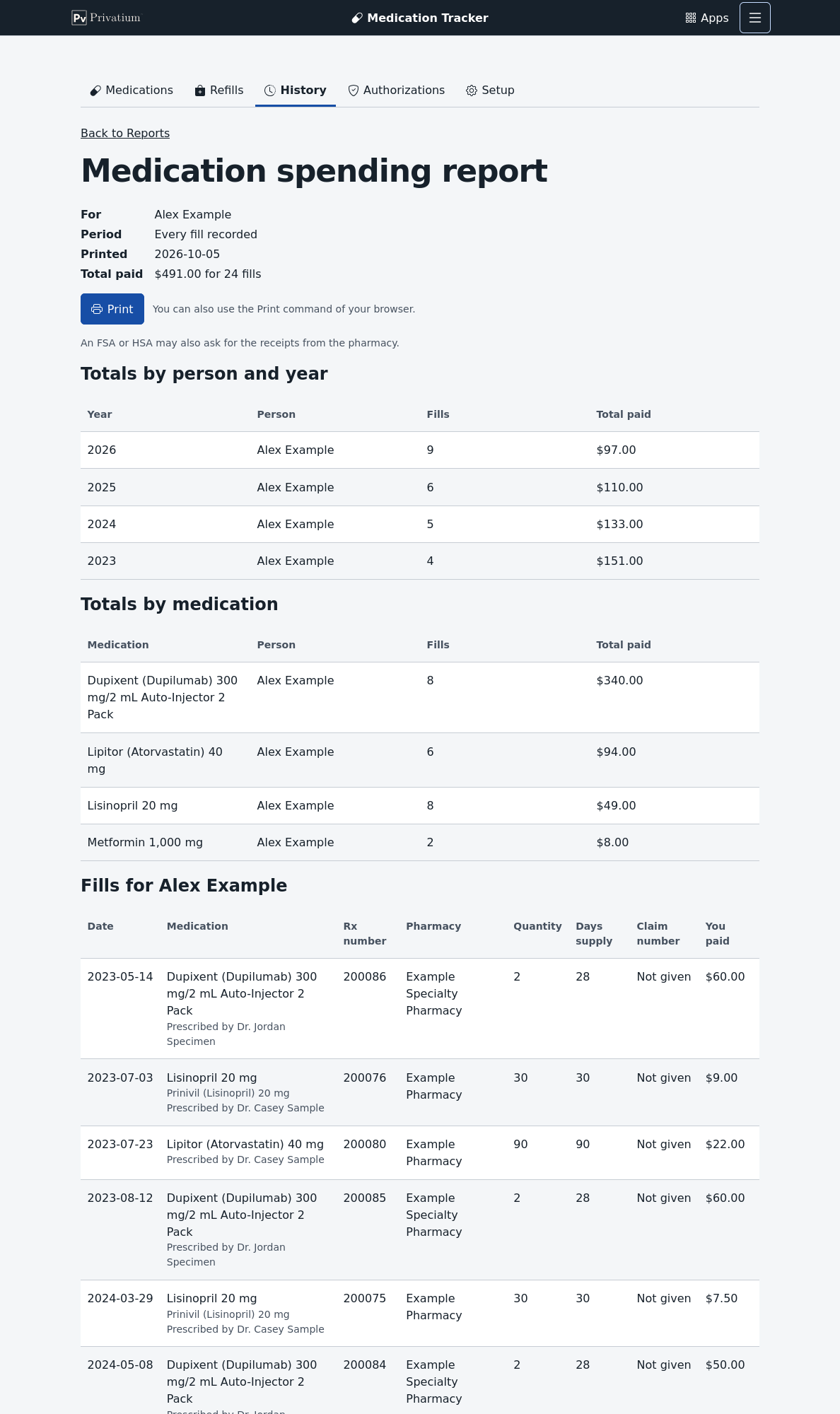
A flexible spending account (FSA) or a health savings account (HSA) may ask what you paid for medicines. The printable report helps with that, and with taxes.
- On the Reports tab, choose the person and the time period, such as last year.
- Choose Printable report (opens in a new tab).
- Check the report, then choose Print, or use your browser’s Print command.
The report lists the totals by person and year, the totals by medication, and every fill with its date, prescription number, pharmacy and amount paid. The menus and buttons don’t print. An FSA or HSA may still ask for the pharmacy’s own receipts.
Print a medication list
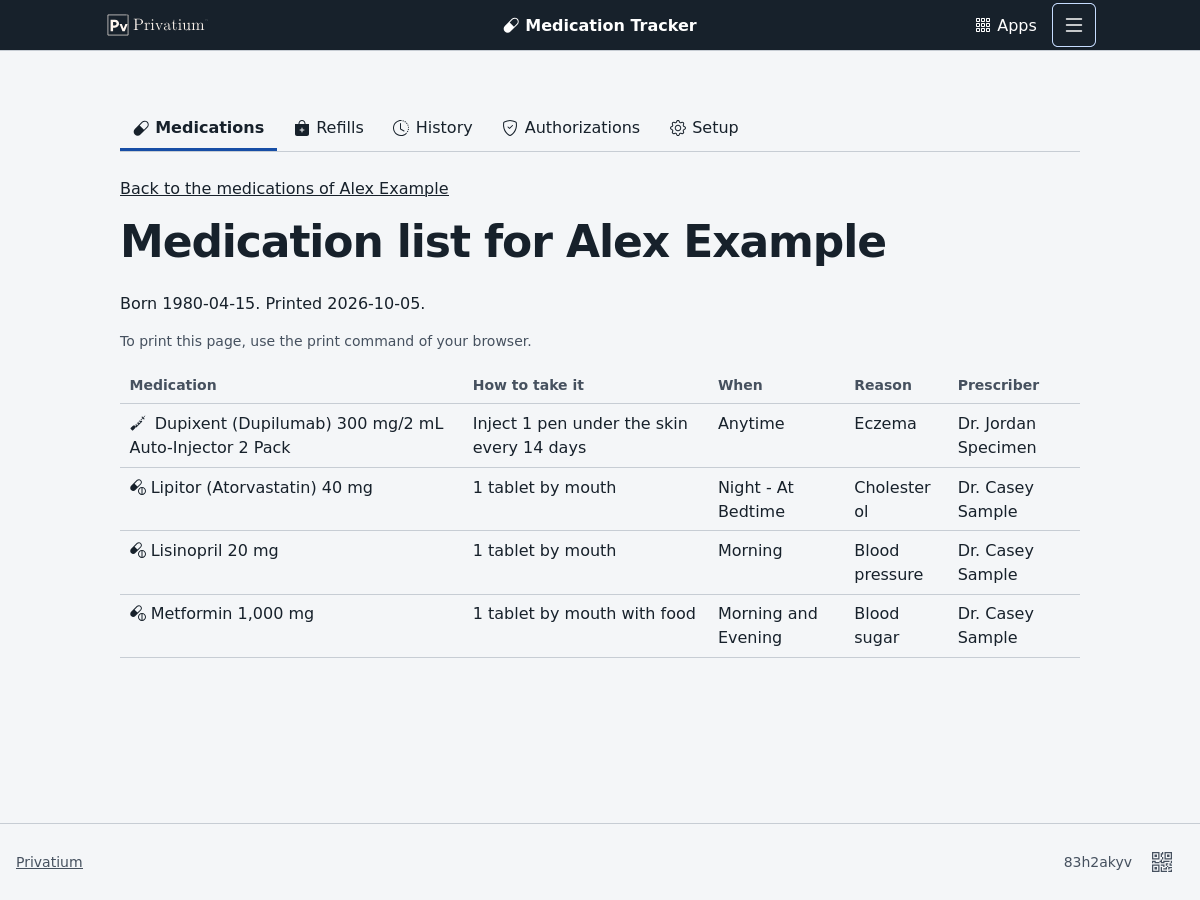
A current list is handy for a doctor’s visit or an emergency.
- Choose Medications, then choose one person.
- Open Menu in the top bar and choose Print list. It appears only when one person is chosen.
- Use your browser’s print command.
The printed page leaves out the bars and buttons. It shows the medicines the person takes now, and a second table of the ones on hold. Treat a printed list like any paper with health details on it.
Find a medicine by any name
Every search box looks at the brand name, the generic name and any other names a product has. Capital letters and punctuation don’t matter.
| You type | The app shows |
|---|---|
| Part of a name, such as “atorva” | The medicines whose names start that way |
| A name with a typo, such as “Lipitro” | The closest names, under Did you mean one of these? |
Some different medicines have names that look alike. So the app never picks a close match for you. Read the name before you choose it.
Teach the app another name. A label, a bill and a person may each call a medicine something different. Choose Setup, then Medication catalog, and search for the name you use. Under Teach the app this name, choose the medicine it belongs to. From then on, every search finds the medicine by that name. You can also open a medicine in the catalog and type the name under Add another name.
Fix the catalog
The catalog is the list of medicine products the app knows. Usually you add to it from inside a form, as Add a medicine to someone’s list shows. The catalog page has every field.
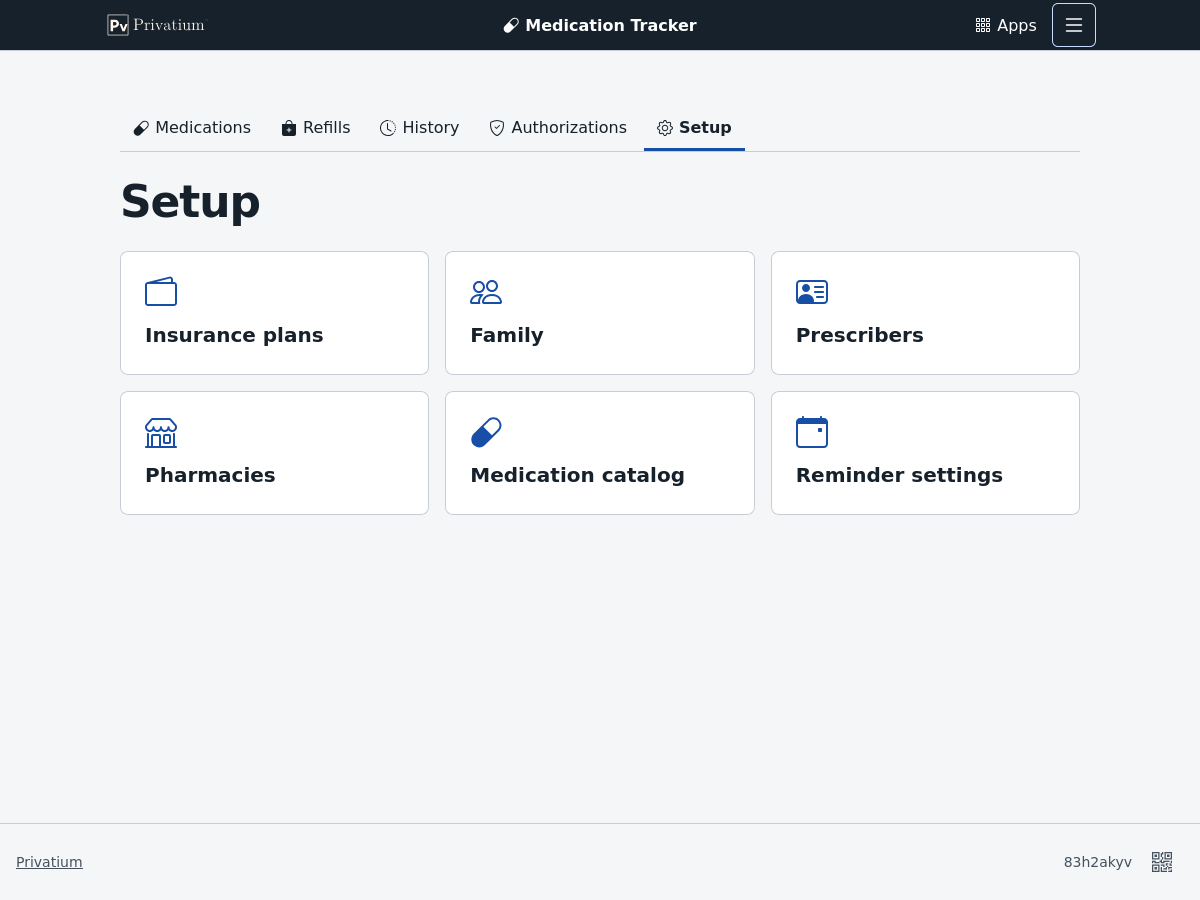
Add a product.
- Choose Setup, then Medication catalog.
- Search first, to make sure it isn’t there already.
- Choose Add a medication.
- Type the brand name, the generic name or both.
- Type the strength as the label prints it, with the unit, such as “10 mg” or “100 units/mL”.
- Pick the route, the form and the package type, or choose – Add new – and type your own.
- Tick Specialty or Controlled if they apply. The starter catalog suggests these marks, but plans differ, so check them.
- Leave the short name empty, and the app builds one such as “Lipitor (Atorvastatin) 40 mg”. Type one only if you want a different name.
- Choose Save.
Merge two entries for the same product. If the catalog has one product twice, under two names, open the one that should go away and choose Merge into another medication. Find the one to keep, choose Keep this one, read what will happen, and choose Merge. Its fills and names move to the one you keep. A merge can’t be undone, so only merge entries with the same strength.
Remove a record
Every Remove button asks first. Choose Remove to go ahead, or Keep it to go back.
The app won’t remove a person, product, medicine, pharmacy, prescriber or plan that other records still use. The page tells you what uses it. To keep a medicine’s history but take it off the active list, change its status to No longer taking instead.
Removing hides the record in the app. Privatium still keeps the original on your computer, as part of its history of changes.
When a form comes back with problems
If something in a form isn’t right, the form comes back with a list of problems at the top. Each problem links to its field. Everything you typed is still there.
About dates and your data
All dates use the clock of the computer that runs Privatium. If you open the app while traveling in another time zone, you still see that computer’s date.
Your records stay on your own computer as plain text files. Anyone who can open those files can read them, so protect the computer and its backups as you would any health papers. How the app works explains what the app sends over the internet, which is only medicine names when you search online.
Update to a new version
Each new version of the app comes as a file named meds.zip on the
releases page.
Your records stay where they are when you update. Privatium keeps them in its own data
folder, apart from the app’s folder.
- Stop Privatium.
- Download
meds.zipfrom the latest release and unzip it. You get a newmedsfolder. - In the
appsfolder inside Privatium’s data folder, delete the oldmedsfolder. Put the new one in its place. - Start Privatium again and open the app. Your people, medicines and fills are all still there.
Conclusion
You can now keep each person’s medicine list, record fills by hand or from a portal website, and see what needs a refill before it runs out. For the reasons behind the dates, read How the app works.
Additional resources
- Words to know
- How the app works
- Compliance: the security and accessibility checks
- Privatium’s guide to using your apps
- Privatium’s security page
Copyright © 2026 Gabriel Mongefranco